2 — Navigation & Profile
How to move around the app, and what lives on your profile.
2.1 The new‑user dashboard
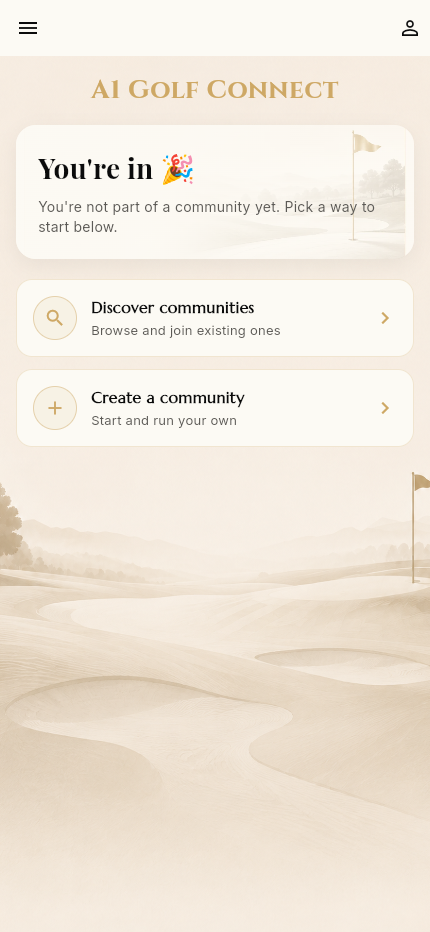
Immediately after verifying, a brand‑new user lands here. Because you haven't joined or created a community yet, the dashboard shows a friendly empty state:
You're in 🎉 — You're not part of a community yet. Pick a way to start below.
Two clear next steps:
- Discover communities — browse and join existing ones
- Create a community — start and run your own
Top bar: a menu button (left) and a profile button (right).
2.2 The side drawer (navigation menu)
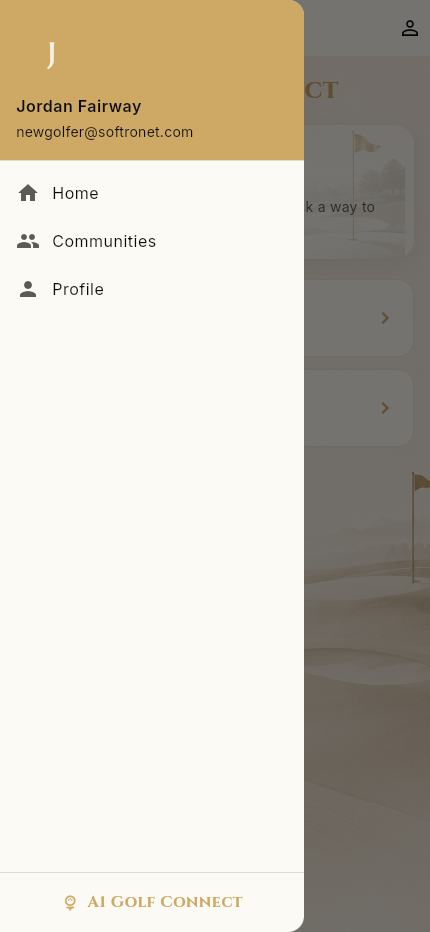
The hamburger menu opens the side drawer. For a new user it's intentionally minimal:
- Your avatar, name, and email at the top
- Home
- Communities
- Profile
Once you join a community, the in‑community drawer gains more options (Member Directory, Notifications, Payment History — see section 4).
2.3 Bottom tab bar
After you belong to a community, a bottom tab bar appears. There are two different tab bars depending on where you are:
- Top‑level dashboard: Home · Communities · Profile
- Inside a community: Home · Events · Community · Profile
2.4 Your profile
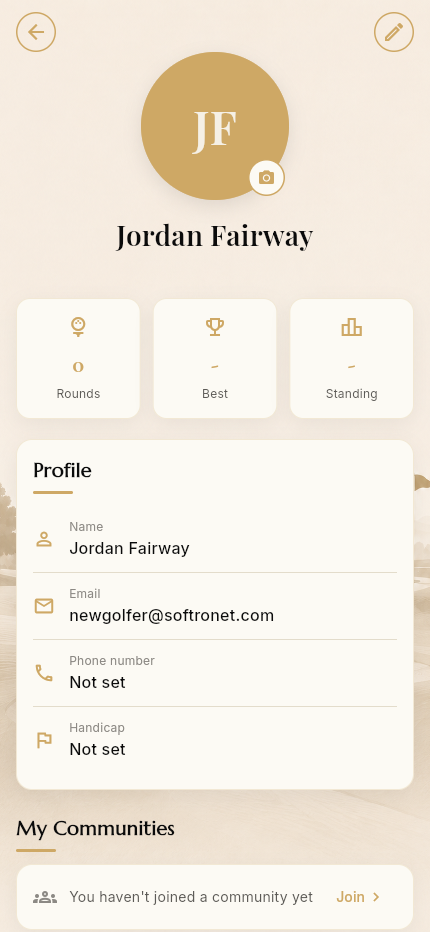
Reached from the profile icon or the drawer. The top of the profile shows:
- Avatar (initials until you add a photo) with a camera button to change it
- Your name
- Three stat tiles: Rounds, Best, Standing (all empty for a new user)
- A Profile card: Name, Email, Phone number, Handicap (editable via the pencil
icon top‑right)
- My Communities — "You haven't joined a community yet" with a Join shortcut
- Recent rounds — "No rounds played yet"
Scrolling down reveals Settings:
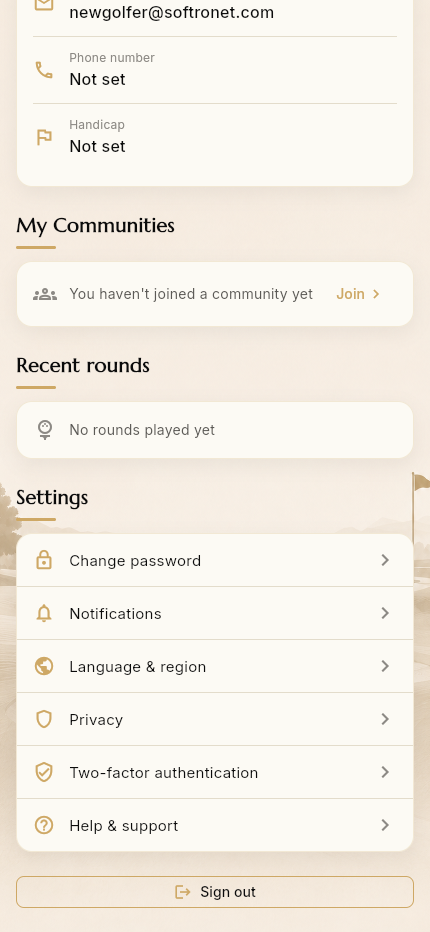
- Change password
- Notifications
- Language & region
- Privacy
- Two‑factor authentication
- Help & support
- Sign out
Each of these is covered in 7 — Settings & Account.
➡️ Next: Finding & Joining Communities