3 — Finding & Joining Communities
How to discover communities and become a member.
3.1 Discover communities
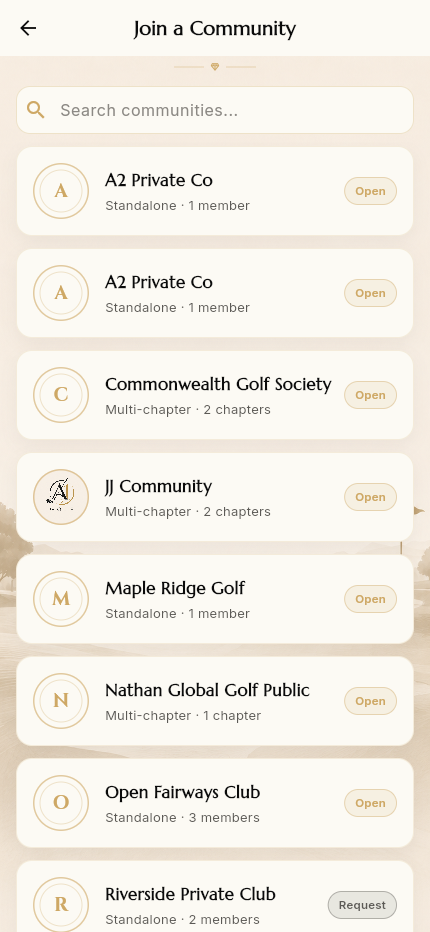
From the dashboard, Discover communities opens the Join a Community list. Each row shows:
- An avatar (initials)
- The community name
- Its type and size — e.g. Standalone · 3 members or Multi‑chapter · 2 chapters
- A join policy badge:
- Open — anyone can join instantly - Request — joining requires admin approval
A search box at the top filters the list by name.
3.2 Joining an open community
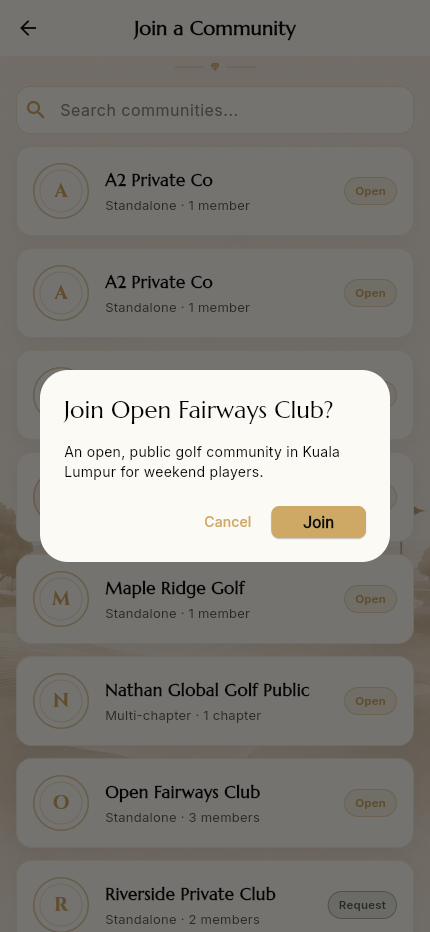
Tapping an Open community shows a confirmation dialog with the community's one‑line description and Cancel / Join. Tapping Join adds you immediately and drops you on your member dashboard.
For Request communities the flow instead submits a join request that a community admin must approve before you gain access.
3.3 Your member dashboard
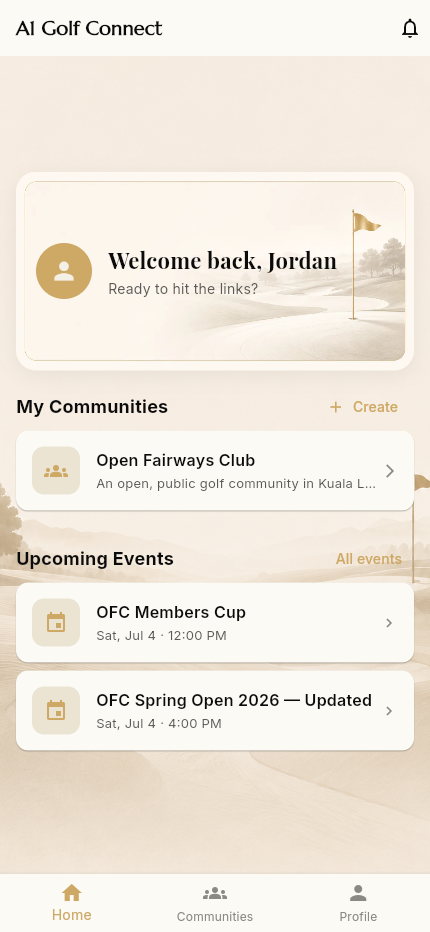
Once you belong to at least one community, the dashboard changes to your home base:
- Welcome banner — "Welcome back, Jordan / Ready to hit the links?"
- My Communities — cards for each community you've joined, plus a Create
shortcut to start your own
- Upcoming Events — the next events across your communities, with an All events link
- Bottom tabs: Home · Communities · Profile
- A notifications bell in the top bar
Tapping a community card enters that community (sets it as your active context) and opens its shell — see 4 — Inside a Community.
➡️ Next: Inside a Community